Measuring WordPress Core and Plugin Performance Impact Automatically
You log into your agency dashboard on a Friday afternoon. You select a high-traffic e-commerce client and push an update to WooCommerce alongside twelve other utility plugins. Without wordpress plugin performance monitoring, performance regressions can go unnoticed until they affect Core Web Vitals, user experience, and conversions. The visual layout stays perfectly intact. The WordPress […]
- Always capture a pre-update snapshot of both the database and files before updates.
- Run pixel-by-pixel visual diffing: changes above 5% indicate critical layout breaking.
- Automate rollbacks without human delays to prevent lost revenue on client stores.
- Quarantine suspect files instead of deleting so post-mortem analysis remains possible.
You log into your agency dashboard on a Friday afternoon. You select a high-traffic e-commerce client and push an update to WooCommerce alongside twelve other utility plugins. Without wordpress plugin performance monitoring, performance regressions can go unnoticed until they affect Core Web Vitals, user experience, and conversions.
The visual layout stays perfectly intact. The WordPress uptime monitoring system reports 100 percent availability. The server is returning an HTTP 200 status code. You mark the maintenance task as complete.
However, over the next 48 hours, the client’s conversion rate drops by 15 percent.
Upon investigation, you discover that the recent update to an analytics tracking plugin introduced a bloated, synchronous JavaScript payload. The site did not break, but the Time to First Byte (TTFB) spiked from a crisp 200 milliseconds to a sluggish 2.5 seconds. The mobile rendering path was completely blocked.
The website was online, but the performance regression was silently killing the business.
When you manage multiple WordPress sites, pushing code blindly is an operational liability. However, assuming an update is successful just because the CSS layout survived is equally dangerous. This technical guide breaks down the mechanics of code bloat, the severe limits of manual speed tests, and how elite DevOps teams deploy wordpress plugin performance monitoring to automatically measure metric shifts before they impact revenue.
Quick Answer: How do you monitor WordPress plugin performance?
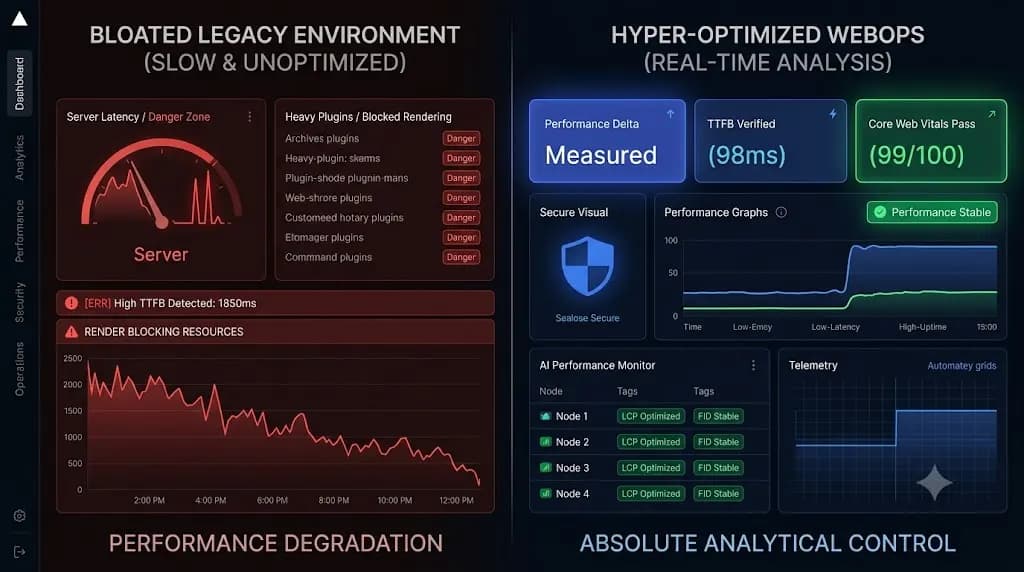
To execute effective wordpress plugin performance monitoring, agencies must move away from manual speed tests. Instead, deploy a WebOps platform like SiteOps to establish a continuous performance baseline. When a plugin or core update is executed, the system autonomously measures the delta (the difference) in critical metrics like Time to First Byte (TTFB) and frontend load times. If an update introduces severe latency or bloat, the system flags the performance regression immediately.
The Silent Killer of Core Web Vitals
To understand why automated performance tracking is mandatory, you must understand how the WordPress architecture degrades.
WordPress is inherently modular. Every time you install or update a plugin, you are injecting third party PHP, CSS, and JavaScript into your client’s server environment. When performance drops after an update, it typically stems from three specific vectors.
1. The Heavy Database Query
Plugins frequently add custom tables or store massive amounts of serialized data in the wp_options table. An update might introduce a poorly written, unindexed database query that runs on every page load. The server CPU spikes, causing the TTFB to skyrocket. The page looks fine, but the backend is struggling to breathe.
2. Synchronous External API Calls
Many marketing and analytics plugins rely on external APIs. If an update changes how the plugin communicates with its external server, and that server experiences latency, your client’s WordPress site will hang while it waits for the API to respond.
3. Frontend Asset Bloat
To improve functionality, plugin developers often push updates that include larger JavaScript libraries or unminified CSS stylesheets. If these assets are enqueued aggressively in the site header, they block the rendering of the Document Object Model (DOM). The Google Core Web Vitals score plummets, taking the client’s organic SEO rankings down with it.
The Flaw in Reactive Performance Testing
If an update can silently ruin a website’s speed, you must verify performance. The traditional agency method is reactive manual testing.
To guarantee safe WordPress updates without automation, a developer clones the site to a staging server. They run the site through Google PageSpeed Insights or GTmetrix to establish a baseline. They execute the plugin updates. Then, they run the speed test a second time and manually compare the waterfall charts to see if the TTFB or rendering time increased.
This workflow is fundamentally unsustainable for a growing digital agency.
If this manual test takes 10 minutes per site, and you have 50 clients on a profitable WordPress maintenance retainer, you are burning over 8 hours of unbillable labor every week just looking at speed metrics.
The hidden cost of broken WordPress updates includes the massive payroll drain required to ensure those updates do not destroy your client’s conversion rate.
Automating the Performance Delta with SiteOps
To scale a maintenance portfolio profitably, you must decouple code execution from human QA verification. You need an autonomous WebOps agent that tracks performance metrics continuously and flags deviations at machine speed.
This shift from manual testing to autonomous tracking is exactly how AI WordPress maintenance is changing agencies.
We engineered SiteOps to provide agencies with absolute operational visibility. SiteOps does not just execute blind bulk updates; it tracks the exact impact those updates have on the server and the frontend.
Here is how the automated performance engine protects your clients.
1. Continuous Baseline Tracking
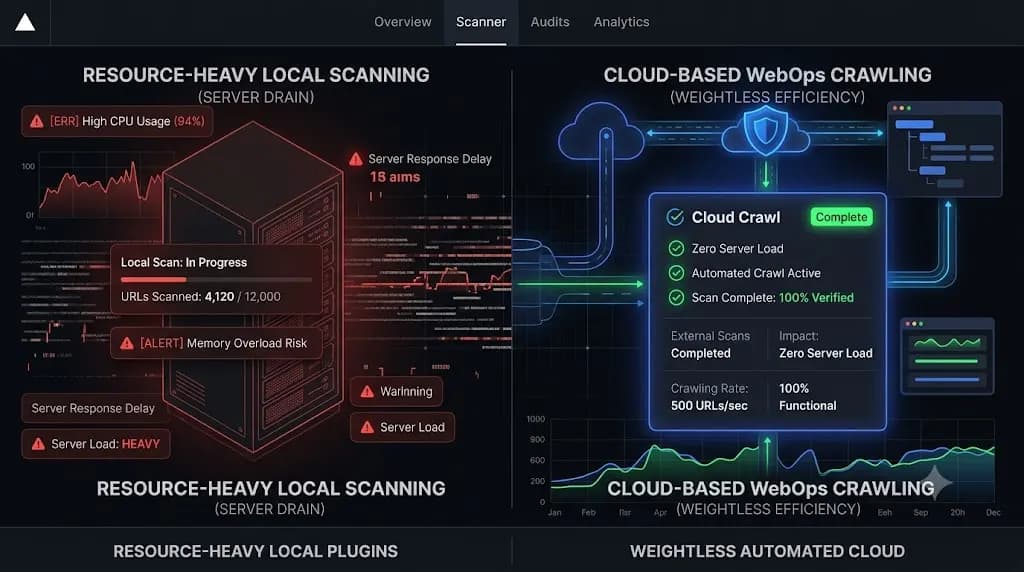
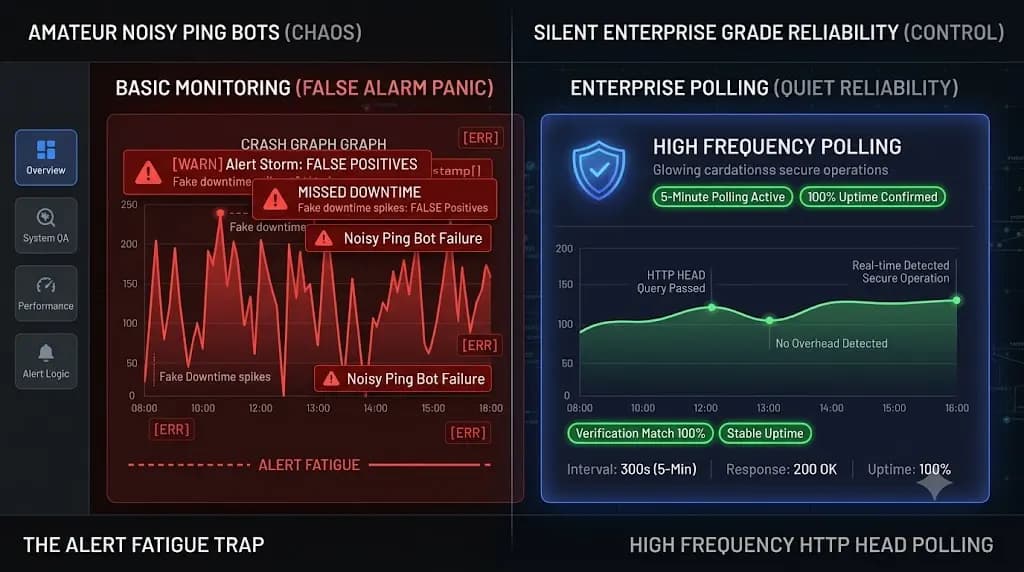
SiteOps establishes a continuous performance baseline. Using lightweight HTTP HEAD requests and backend telemetry, the platform constantly measures your client’s Time to First Byte (TTFB) and core server response metrics. You always know exactly how fast the site operates under normal conditions.
2. Post Update Metric Analysis
When you initiate a plugin update using the SiteOps WordPress maintenance tool, the platform does not simply push the code and log off.
Immediately following the update execution and cache purge, the platform analyzes the performance delta. If an update to WooCommerce suddenly causes a 400 millisecond delay in server response time, SiteOps flags the regression. You no longer have to wait for the client to complain about a slow site thirty days later.
3. Holistic AI Verification
Performance tracking does not exist in a vacuum. SiteOps unifies this data with its AI visual regression engine and synthetic transaction bots.
During an update, the system verifies that the CSS layout did not break, ensures the WooCommerce checkout still accepts data, and measures the speed of the environment. If any of these critical pillars fail, SiteOps can trigger an autonomous auto rollback, restoring the database to its fast, stable pre update state in seconds.
Translating Speed into Agency Value
When evaluating a ManageWP alternative or a self hosted MainWP alternative, you must demand a platform that proves its own worth to your clients.
Basic dashboards only tell you that a plugin was updated. They offer zero proof that the site is actually healthy.
SiteOps utilizes its performance tracking and deep WordPress security monitoring to generate AI driven executive summaries. Through our white-label WordPress maintenance feature, you send clients a beautiful monthly report detailing their pristine uptime, their stable server response times, and the exact security threats you blocked.
You stop selling technical chores and start selling guaranteed business continuity.
Optimize WordPress performance and protect your agency margins. You can automate WordPress maintenance for multiple sites securely today.
Optimize WordPress performance with SiteOps. Connect your first 3 sites free and experience automated WebOps.
Frequently Asked Questions
How do you automate wordpress plugin performance monitoring? To automate performance monitoring, you must abandon manual speed testing tools. Use an advanced WebOps platform like SiteOps that continuously tracks server response times (TTFB) and frontend metrics. The system autonomously compares the performance baseline before and after an update, alerting you instantly to any code induced latency.
Why did my WordPress site get slow after an update? Plugin updates often introduce heavier JavaScript payloads, unoptimized CSS stylesheets, or bloated database queries. If a plugin alters the wp_options table heavily or relies on slow external API calls, the server response time will degrade instantly, slowing down the entire website.
What is Time to First Byte (TTFB) in WordPress? TTFB measures the time it takes for a user’s browser to receive the very first byte of data from your WordPress server. A high TTFB indicates backend server struggles, usually caused by slow database queries, heavy PHP execution, or inadequate caching.
Why are manual speed tests inefficient for agencies? Running a site through Google PageSpeed Insights before and after every single plugin update takes approximately 10 minutes per client. For an agency managing 50 sites, this requires hours of unbillable labor every week, making it impossible to scale profitably.
How does SiteOps measure performance impact? SiteOps tracks continuous performance telemetry. When a worker job executes a plugin update, the platform analyzes the new telemetry against the established baseline. If a specific update causes an immediate spike in server latency, the system flags the regression for the agency.
What is the HTTP 200 Fallacy in web performance? The HTTP 200 Fallacy is the dangerous assumption that a successful server response equals a healthy site. A server can return a 200 OK status while taking 8 seconds to load a bloated JavaScript file. Basic ping monitors miss this, which is why actual performance monitoring is required.
How do I fix a slow WordPress admin dashboard after an update? A slow wp-admin panel is usually caused by plugins making synchronous external API calls (phoning home) or bloated auto loaded data in the wp_options table. You must use a performance profiler to isolate the specific plugin bottleneck and either disable it or optimize the database.
Can WordPress automatically roll back an update if performance drops? Native WordPress auto updates do not check for performance regressions or visual layout breaks. They execute blindly. Safe, automated rollbacks require a dedicated third party platform equipped with visual and performance verification capabilities.
How do you prove the value of performance optimization to a client? Do not send raw technical data. Use an automated reporting tool to generate an executive summary. Connect the dots for the client: show them that by maintaining a sub 500ms server response time through careful plugin management, you are actively protecting their conversion rates and SEO rankings.
Does tracking performance impact the speed of the live site? No. Advanced platforms like SiteOps perform the heavy lifting of data synthesis and AI analysis on their own cloud infrastructure. They gather telemetry using lightweight HTTP requests that do not impact the processing power of the client’s actual web server.
Written by SITEOPS Engineering
We build the WordPress operations platform agencies use to update, secure and monitor client sites. These guides come directly from maintenance incidents and automated workflows we operate.