WordPress Update Broke My Site: Instant Recovery and Permanent Prevention
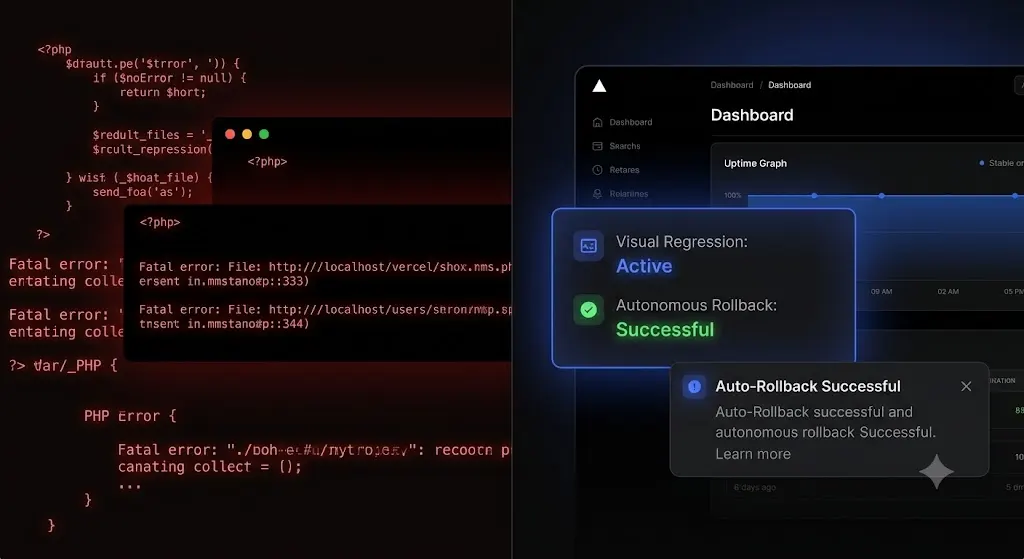
You click “Update All” on a client’s WooCommerce store. The page refreshes. Instead of the familiar success message, you are met with a blank white screen. The frontend is down, the backend is inaccessible, and the client’s paid traffic is currently routing to a fatal PHP error.
Panic sets in immediately. You scramble to open your FTP client, locate your database backups, and figure out which of the 14 plugins you just updated caused the catastrophic failure.
If you manage client retainers, this scenario is your worst nightmare. According to WPScan vulnerability databases, over 90% of WordPress security flaws originate in third-party plugins. You are required to update them to keep the site secure. But the WordPress ecosystem is notoriously fragile. A single conflicting line of code can shatter a checkout page and cost your client thousands of dollars in a matter of minutes.
If a wordpress update broke my site is the exact phrase you just typed into Google, you need immediate triage. This guide provides the exact technical steps to bring your website back online right now. Once the fire is out, we will break down how top-tier agencies permanently eliminate this risk using autonomous visual regression testing.
Quick Answer: What to do when a WordPress update breaks your site?
If a WordPress update broke your site and locked you out of the admin dashboard, access your server via FTP. Navigate to the wp-content/plugins folder and rename the folder of the plugin you just updated (for example, change woocommerce to woocommerce-broken). This forces WordPress to deactivate the conflicting plugin immediately, restoring access to your dashboard so you can safely roll back the version.
Triage: 4 Methods to Fix a Broken WordPress Site Right Now
When a site crashes post-update, time is your most expensive metric. You must isolate the conflicting code and deactivate it. Here are the four most reliable technical recovery protocols, ordered from easiest to most advanced.
Method 1: Using WordPress Recovery Mode
Introduced in WordPress 5.2, Fatal Error Protection is your first line of defense. If a plugin update causes a fatal PHP error that triggers the “White Screen of Death,” WordPress will attempt to pause the broken code.
- Check the administration email address associated with the WordPress installation.
- Look for an automated email with the subject line “Your Site is Experiencing a Technical Issue.”
- Click the unique recovery link provided in the email.
- This link allows you to bypass the frontend error and log into a specialized Recovery Mode dashboard.
- Navigate to the Plugins screen. WordPress will highlight the specific plugin causing the fatal error.
- Click “Deactivate” and exit Recovery Mode. Your site will be live again, minus the functionality of that specific plugin.
Method 2: Manual FTP Deactivation (The Folder Rename Trick)
If the site crashed entirely and the Recovery Mode email never arrived, you must manually sever the connection to the broken plugin using File Transfer Protocol (FTP) or your hosting provider’s File Manager.
- Connect to your server using an FTP client like FileZilla or Cyberduck.
- Navigate to the
public_htmldirectory and open thewp-contentfolder. - Open the
pluginsfolder. You will see a list of folders corresponding to your installed plugins. - If you know which plugin caused the crash, right-click its folder and rename it (e.g., rename
elementortoelementor-deactivated). - If you updated in bulk and do not know the culprit, rename the entire
pluginsfolder toplugins-deactivated. This turns off all plugins instantly. - Reload your website. If it loads, the issue is confirmed as a plugin conflict.
- Rename the folder back to
plugins. Log into your WordPress dashboard, navigate to the plugins page, and reactivate them one by one until the site crashes again. You have now identified the exact culprit.
Method 3: Rolling Back via WP-CLI
For developers managing Virtual Private Servers (VPS), using the WordPress Command Line Interface (WP-CLI) is the fastest way to revert a bad update without touching an FTP client.
- SSH into your server and navigate to the root directory of the broken WordPress installation.
- Run the command
wp plugin listto see the status of all plugins. - To force the problematic plugin back to a stable previous version, execute the rollback command. For example, to roll back WooCommerce to version 8.0, run:
wp plugin update woocommerce --version=8.0 --force. - Clear your server cache using
wp cache flush. The site will immediately revert to the stable code.
Method 4: Restoring a Clean Database Backup
If the plugin update altered your database schema and caused corruption (common with major WooCommerce or membership plugin updates), simply deactivating the plugin will not fix the site. You must restore the database.
Log into your hosting control panel or your WordPress maintenance tool and trigger a full restoration of the backup taken immediately prior to the update. A proper agency workflow requires a daily off-site cloud backup specifically for these catastrophic, database-level failures.
Why Do WordPress Updates Break Sites?
To prevent future downtime, you must understand the architectural fragility of the Content Management System. A WordPress site is a complex integration of core files, a theme, and third-party plugins developed by completely different engineering teams.
When these components attempt to interact after an update, three common structural conflicts occur.
PHP Fatal Errors and Deprecated Functions
WordPress relies entirely on PHP to execute server-side logic. If a plugin developer updates their software to require PHP 8.2, but your client’s server is running an outdated PHP 7.4 environment, the code will fail to execute. This syntax mismatch immediately triggers a fatal error, rendering the site completely blank.
CSS and DOM Layout Shifts
Not all broken updates result in a server crash. Often, the server responds perfectly, but the visual frontend is destroyed. Modern sites rely on complex Document Object Models (DOMs) generated by page builders. If an optimization plugin updates and aggressively defers a critical JavaScript file, a client’s mobile navigation menu might become entirely unclickable. This silent failure is incredibly dangerous because standard uptime monitors will not detect it.
Database Schema Migrations
Major version updates often restructure how data is stored. If an update script is interrupted by a server timeout, the database tables become misaligned. The site might still load, but critical queries (like processing a payment or registering a new user) will fail silently in the background.
The Agency Cost of Broken Updates
If you are a freelancer or agency managing multiple clients, fixing a broken site is only the surface issue. The true damage directly impacts your profitability and reputation.
The Unbillable Triage Trap
When a client reports a broken layout, your team must drop billable project work to enter triage mode. You must locate the conflict, test rollbacks on a staging server, and communicate the downtime to the client. This unbillable labor destroys the profit margin of a standard monthly retainer. If you charge $150 a month for maintenance but spend three hours fixing a broken update, you are actively losing money on that contract.
The Illusion of HTTP 200 Monitoring
Most agencies use a basic WordPress monitoring tool that pings the site every five minutes. If the server responds with an HTTP 200 OK status, the dashboard shows a green checkmark.
This is a massive operational liability. If a CSS conflict hides the “Checkout” button, the server will still return an HTTP 200 status. The basic bot thinks the site is perfect, while the client is losing thousands of dollars in abandoned carts. Relying on simple server pings forces your team to manually verify every single site after clicking update.
Permanent Prevention: Escaping the Manual Update Cycle
To scale an agency profitably, you cannot rely on manual Quality Assurance (QA) testing. You cannot manually clone 50 sites to staging environments every Friday just to verify plugin compatibility.
Top-tier agencies have moved beyond manual testing. They achieve safe WordPress updates by shifting to intelligent, automated operations powered by machine vision.
Visual Regression Testing Explained
The only way to truly guarantee safety is to verify the frontend visual layout. Modern platforms achieve this through visual regression testing.
Instead of just pinging a server, the system spins up a headless browser. It visits the live production site and takes a pixel-perfect snapshot of the DOM and high-resolution screenshots of key pages. It then applies the plugin updates, clears the caching layers, and takes a second set of screenshots.
Artificial intelligence overlays the before and after images. It can easily differentiate between expected dynamic content (like a new blog post appearing) and a fatal layout break (like a missing navigation menu or a shattered CSS grid).
Autonomous Auto-Rollbacks
Visual regression is powerful, but detecting a broken site does not save you time if you still have to manually log in via FTP to fix it.
True automation requires active remediation. When a modern system detects a layout break during an update, it instantly halts the process. Within seconds, it queries your backup vault and triggers an autonomous rollback. The database and files are restored to their exact pre-update state before the client or their customers ever see the error.
Comparison: Legacy Updates vs Autonomous Operations
To protect your agency margins, you must evaluate how your current tech stack handles the liability of updates.
| Feature Capability | Manual Agency Execution | Legacy Dashboards (e.g. ManageWP) | Autonomous AI (SiteOps) |
|---|---|---|---|
| Update Verification | Manual Staging Tests (Hours) | Flawed HTTP 200 Server Ping | Pixel-Perfect Visual Regression |
| Broken Code Response | Frantic FTP manual rollback | Sends an email alert | Instant Autonomous Auto-Rollback |
| Security Posture | Reactive malware cleanups | Basic blacklist verification | 4-Level Deep Scan with CVE Tracking |
| Agency Scalability | Low (QA blocks growth) | Medium (High manual oversight) | Infinite (Zero manual QA required) |
How SiteOps Automates Update Safety for Agencies
The WordPress ecosystem is too fragile to rely on tools built a decade ago. If you want to manage multiple WordPress sites without the constant anxiety of client emergency calls, you need a system that acts as an autonomous QA tester.
SiteOps was engineered specifically to solve the agency update bottleneck. It completely eliminates the need for staging environments for routine maintenance.
When you connect a client site, the platform assumes total responsibility for operational safety. It utilizes advanced AI visual regression testing during every update sequence. If it detects even a minor visual anomaly, it executes an instant auto-rollback. You simply wake up to a dashboard notification explaining which plugin failed the test, allowing you to investigate safely on your own time.
By combining this absolute visual safety with native 5-minute WordPress uptime monitoring and proactive 4-level deep security scanning, the platform handles the heavy lifting natively. It even synthesizes this data into AI-generated executive summaries, creating the perfect white-label WordPress maintenance reports for your clients.
Stop risking your reputation on blind updates. Automate your entire maintenance workflow today.
Frequently Asked Questions
Why did my site break after a WordPress update? Sites break during updates due to code conflicts. An updated plugin may require a newer version of PHP than your server is currently running, it may conflict with Javascript from your page builder, or it may have failed mid-execution during a complex database schema migration.
How do I fix a broken WordPress site without admin access? If you cannot access the wp-admin dashboard, you must use an FTP client or your hosting provider’s File Manager. Navigate to wp-content/plugins and rename the folder of the plugin you just updated. This forces WordPress to deactivate it and will immediately restore access to your dashboard.
What is WordPress Recovery Mode? Introduced in WordPress 5.2, Recovery Mode is a fatal error protection feature. If a plugin crashes your site, WordPress sends an email to the admin with a unique login link. This link bypasses the broken frontend, allowing you to log in and safely deactivate the faulty plugin.
How do I safely update WordPress plugins? Never push bulk updates blindly to a live production site. You must either clone the site to a staging environment to manually test the updates, or use a modern automated maintenance platform that utilizes visual regression testing and instant auto-rollbacks.
What is visual regression testing? Visual regression testing is an automated QA process. A headless browser takes a screenshot of your site before an update and a second screenshot immediately after. AI compares the images pixel by pixel to detect any visual breakages, missing elements, or layout shifts caused by the new code.
Can WordPress automatically update plugins safely? Native WordPress auto-updates are highly risky for agency clients because they execute blindly. They push the new code without verifying if it broke the frontend layout or CSS. Safe automation requires a dedicated third-party tool with visual verification.
What is the best ManageWP alternative for safe updates? When seeking a ManageWP alternative, agencies prioritize visual verification. Legacy tools like ManageWP rely on basic HTTP status checks. Modern platforms like SiteOps use AI visual regression and instant auto-rollbacks to guarantee the site never breaks during an update.
Is MainWP safe for bulk updating client sites? While seeking a MainWP alternative, agencies often realize that self-hosted tools still lack native automated visual verification. Pushing bulk updates via MainWP without visual testing carries the exact same risk of breaking a frontend layout as updating manually.
Why is an HTTP 200 check not enough for WordPress monitoring? An HTTP 200 status only means your server responded to a request. A WordPress site could have a completely shattered CSS layout, a missing checkout button, or a broken lead form and still return a 200 OK status to a basic ping bot.
How do monitoring tools check for WordPress security? Basic tools only check public malware blacklists. Advanced WordPress security monitoring platforms perform deep scans. They verify core WordPress file integrity, scan the database for obfuscated malware, and cross-reference active plugins against global CVE vulnerability databases.
The Bottom Line
A broken WordPress update is an operational failure. Every minute a checkout form or a lead capture page is offline, your client is actively losing money, and your agency is losing credibility.
Continuing to rely on blind bulk updates, basic HTTP ping bots, or unprofitable manual QA testing is a risk modern agencies simply cannot afford to take. You must adopt a workflow that autonomously verifies every code change before it impacts the end user.
By implementing automated visual regression testing and instant auto-rollbacks, you protect your clients’ revenue and secure your agency’s profit margins permanently.
Stop letting plugin updates threaten your client retainers. SiteOps automates all of this free for 3 sites, no card required.
Scale Your Agency Today
Join 500+ agencies automating their WordPress maintenance. Get started with 3 sites for free. No credit card required.