WordPress Plugin Conflicts: How to Find and Fix Them After Updates
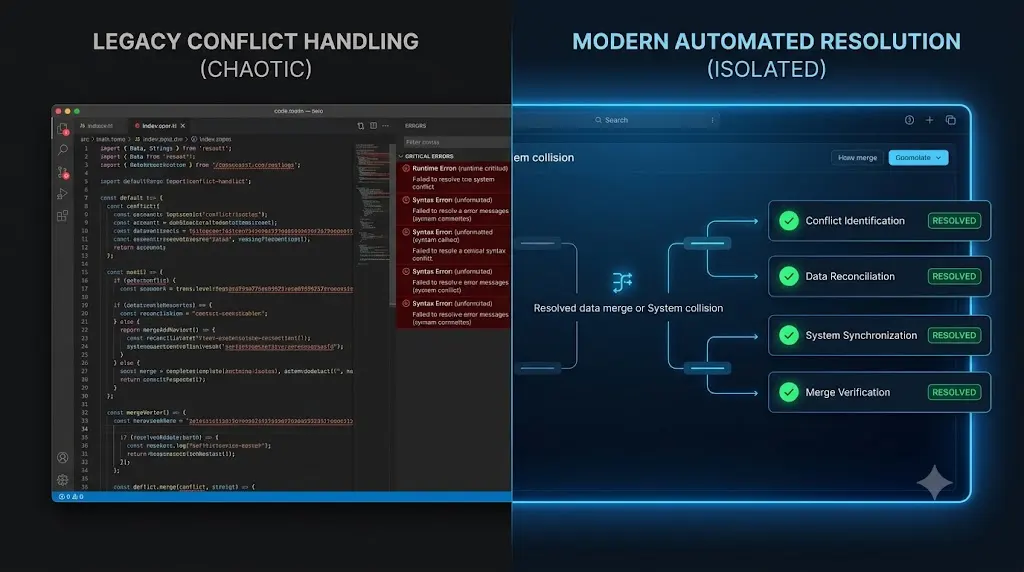
If you manage client retainers, knowing how to diagnose and resolve wordpress plugin conflicts rapidly is the difference between a minor hiccup and a catastrophic loss of client trust.
You execute a routine update on your client’s WordPress site. The progress bar completes. You refresh the homepage, and the primary navigation menu has vanished. Or worse, the site returns a blank white screen, completely locking you out of the admin dashboard.
You have just triggered a plugin conflict.
The WordPress ecosystem is incredibly powerful because of its modularity. However, this modularity is also its greatest operational liability. A modern WordPress site is an amalgamation of core files, a highly customized theme, and dozens of plugins developed by entirely different engineering teams. When you introduce a new code version via an update, there is always a statistical probability that two scripts will attempt to control the same function simultaneously.
This guide provides the definitive technical protocol for finding and fixing conflicts after an update. We will cover the manual isolation method, how to recover from fatal errors via FTP, and how top-tier agencies completely eliminate this risk by utilizing AI visual regression to automate the entire troubleshooting sequence.
Quick Answer: How do you find and fix a WordPress plugin conflict?
To find and fix a WordPress plugin conflict, you must systematically isolate the offending code. If you have admin access, deactivate all plugins, switch to a default WordPress theme, and reactivate the plugins one by one, checking the site after each activation until the error reappears. If you are locked out by a fatal error, access your server via FTP, navigate to wp-content/plugins, and rename the plugins folder to instantly deactivate everything and restore access.
The Anatomy of a Plugin Conflict
Before you begin troubleshooting, you must understand the nature of the failure. Not all wordpress plugin conflicts look the same on the frontend. They generally fall into three distinct categories.
1. The PHP Fatal Error (The White Screen)
This occurs when a plugin update introduces a syntax error, calls a function that does not exist, or requires a newer version of PHP than your server is currently running. The server immediately halts execution.
- The Symptom: A completely blank white screen on the frontend and backend, or a message reading “There has been a critical error on this website.”
- The Impact: Total downtime. The site is unreachable.
2. The JavaScript (JS) Conflict
Many modern plugins rely heavily on JavaScript to power interactive elements (sliders, popups, or AJAX checkout buttons). If two plugins attempt to load conflicting versions of a library (like jQuery), or if an optimization plugin defers a script improperly, the browser throws a console error and stops rendering the interactive elements.
- The Symptom: The page loads, but dropdown menus won’t open, forms won’t submit, or the WooCommerce “Add to Cart” button simply spins endlessly.
- The Impact: The site appears online, but business logic and conversions fail silently.
3. The CSS / DOM Layout Shift
This is the most insidious conflict because basic server monitoring tools will never detect it. If an update alters the name of a specific CSS class that your theme relies on, the structural integrity of the Document Object Model (DOM) shatters.
- The Symptom: Text overlaps, images stretch beyond their containers, or entire sections disappear from mobile devices.
- The Impact: A severely degraded user experience that damages brand credibility and conversion rates.
Agency Reality Check: You cannot ignore updates to avoid conflicts. According to Wordfence security reports, outdated plugins are the primary entry point for automated botnets. You must update, but you must know how to mitigate the resulting conflicts.
Protocol 1: Recovering From a Fatal Error (No Admin Access)
If a plugin update broke your site entirely and you cannot access the wp-admin dashboard, you cannot use standard troubleshooting tools. You must bypass the WordPress interface and access the raw file system.
Step 1: FTP Deactivation
- Connect to your server using a secure FTP client (like FileZilla or Cyberduck) or your hosting provider’s File Manager.
- Navigate to the
public_html/wp-content/directory. - Locate the
pluginsfolder. - Right-click the folder and rename it to
plugins-deactivated.
This action forces WordPress to instantly deactivate every plugin on the site.
Step 2: Restore Dashboard Access
- Return to your browser and attempt to log into
yourdomain.com/wp-admin. The dashboard should now load successfully (though the frontend will look broken without its plugins). - Go back to your FTP client and rename the folder back to its original name:
plugins. - In your WordPress dashboard, navigate to the Plugins > Installed Plugins screen. You will see that all plugins are currently deactivated.
You have successfully stabilized the environment and can now begin the isolation process.
Protocol 2: The Manual Isolation Method
If you have admin access (or just restored it via FTP), you must identify the specific plugin causing the issue. This requires a methodical, elimination-based approach.
Step 1: The Caching Purge
Before assuming a code conflict exists, you must eliminate stale data. Often, the server or browser is simply serving an old, cached version of a CSS file alongside newly updated HTML, causing a visual break.
Clear your browser cache, purge your WordPress caching plugin (e.g., WP Rocket), and flush any edge caching layers (like Cloudflare). If the issue resolves, there was no conflict.
Step 2: The Theme Baseline Test
You must determine if the conflict is between two plugins, or between a plugin and your custom theme.
- Navigate to Appearance > Themes.
- Temporarily activate a default WordPress theme (like Twenty Twenty-Four).
- Check the frontend of the website.
If the issue disappears, the updated plugin is conflicting directly with your custom theme’s code or template overrides. You will need to contact your theme developer or adjust your child theme’s functions.php. If the issue persists, the conflict is between two plugins. Reactivate your original theme.
Step 3: The Elimination Sequence
- Navigate to Plugins > Installed Plugins.
- Select all plugins and choose Deactivate from the bulk actions dropdown.
- Reactivate your plugins one by one.
- After every single activation, open an Incognito browser window and reload the affected page.
When the error reappears, the plugin you just activated is the source of the conflict.
Step 4: Resolution Options
Once you have identified the conflicting plugin, you must choose how to proceed:
- Rollback: If the plugin is critical to the site’s function, use a tool like WP Rollback to revert the plugin to its previous stable version while you wait for the developer to issue a patch.
- Replace: If the plugin is a minor utility, delete it and find an alternative plugin in the repository that performs the same function without conflicting with your stack.
- Contact Support: Open a ticket with the plugin developer, providing them with the specific PHP error logs or browser console output to help them issue a hotfix.
Why Manual Troubleshooting Destroys Agency Profit Margins
The manual isolation protocol outlined above works perfectly. However, if you are an agency attempting to build a profitable WordPress maintenance retainer, this workflow is an operational disaster.
Let us run the math. If you manage 40 client websites, and you push a bulk update on a Friday afternoon, you are statistically guaranteed to experience a conflict eventually.
If an update breaks a complex WooCommerce site, manually testing 30 different plugins via the elimination sequence can take a senior developer two to three hours of highly focused, unbillable triage. If you bill at $150 an hour, a single plugin conflict just cost your agency $450 in lost productivity.
Furthermore, manual troubleshooting is reactive. You only perform the elimination sequence after the client’s live production site has broken. The hidden cost of broken WordPress updates includes the reputational damage and lost client revenue that occurs while your team scrambles to find the conflict.
You cannot scale an agency if your team has to act as human Quality Assurance testers.
The Modern Workflow: Automating Conflict Detection
To scale maintenance profitably, you must decouple the execution of updates from human verification. Top-tier agencies do not spend hours manually deactivating plugins; they use AI WordPress maintenance platforms to automate the detection and remediation of conflicts.
This is exactly why we built SiteOps. SiteOps replaces manual staging tests and frantic FTP recoveries with autonomous machine vision.
How AI Visual Regression Stops Conflicts
When you trigger a bulk update via the SiteOps dashboard, the system does not push the code blindly. It acts as an autonomous QA tester.
- The Baseline Snapshot: Before any files are modified on the server, SiteOps spins up a headless Chromium browser. It visits the live production site exactly as a human customer would and takes a pixel-perfect, high-resolution snapshot of the Document Object Model (DOM) and visual layout.
- The Execution: SiteOps applies the plugin updates.
- The Verification: The system clears the server caching layers and takes a second set of screenshots.
- AI Variance Analysis: Artificial intelligence overlays the images. It can easily differentiate between expected dynamic content and a fatal layout break caused by a plugin conflict.
To see exactly how this integrates into an agency workflow, read our deep dive on how to safely update WordPress plugins without risking client downtime.
Instant Autonomous Auto-Rollbacks
Detecting a conflict is only useful if you can fix it before the client sees it.
If the SiteOps AI detects that a plugin update shattered a CSS grid or hid a checkout button, it instantly halts the process. Within seconds, it triggers an autonomous auto-rollback. The MySQL database and file system are restored to their exact stable pre-update state.
The client never experiences the downtime. You never receive the angry phone call. You simply wake up to a dashboard notification explaining exactly which plugin update caused the visual variance, allowing you to investigate the conflict on a staging server when you are ready.
Stop Troubleshooting Live Sites
If you manage multiple WordPress sites, pushing “Update All” and hoping for the best is not a maintenance strategy; it is deploying risk.
When comparing a ManageWP alternative or evaluating how to how to test WordPress updates before applying them, you must choose a platform that verifies its own work. Legacy tools push code blindly and force you into manual triage when a conflict occurs.
By upgrading your operational stack to include AI visual regression testing and instant auto-rollbacks, you guarantee that a plugin conflict will never reach a live production environment. You protect your clients’ revenue, secure your agency’s reputation, and radically preserve your billable hours.
Stop manually testing plugins. SiteOps automates the entire workflow free for 3 sites, no credit card required.
Frequently Asked Questions
What causes WordPress plugin conflicts? Conflicts occur when two pieces of code (either two plugins, or a plugin and a theme) attempt to control the same function simultaneously, or when an updated plugin relies on an outdated version of a shared library (like jQuery or React) that another active plugin is also using.
How do I find a plugin conflict without breaking my live site? The safest manual method is to use a staging environment. Clone your live site to a private staging URL, and perform the sequential deactivation and activation testing there. Once you find the conflict, you can apply the safe updates to your live site.
What is the Health Check & Troubleshooting plugin? It is a free diagnostic tool available in the WordPress repository. It includes a “Troubleshooting Mode” that allows logged-in administrators to temporarily deactivate all plugins and switch to a default theme for their session only, without affecting the experience of normal site visitors.
Why did my site crash immediately after an update? A sudden crash resulting in a white screen is almost always a PHP fatal error. The updated plugin likely contains a syntax error or is calling a function that is incompatible with the PHP version running on your hosting server.
How do I fix a broken WordPress site without admin access? You must use an FTP client or your hosting provider’s File Manager. Navigate to the wp-content/plugins folder and rename the folder of the plugin you just updated. This forces WordPress to deactivate it and will instantly restore access to your dashboard.
How do agencies avoid plugin conflicts? Top-tier agencies avoid the impact of conflicts by using automated maintenance platforms like SiteOps. These platforms utilize AI visual regression testing to capture before-and-after screenshots during an update, automatically rolling the site back if a conflict breaks the frontend layout.
Does deactivating a plugin delete its data? Usually, no. Deactivating a plugin simply stops its code from executing. Its settings and data remain safe in your WordPress database. However, clicking “Delete” on a plugin will often erase its associated database tables, so always take a backup first.
How do I safely update an Elementor site? Page builders like Elementor generate complex DOM structures that are highly susceptible to CSS conflicts during updates. If an Elementor update broke your site, you must clear all caches, regenerate CSS via the Elementor tools panel, or use visual regression tools to automate safe rollbacks.
What is visual regression testing in WordPress? Visual regression testing uses a headless browser to take a screenshot of your site before a plugin update, and a second screenshot immediately after. AI compares the images pixel-by-pixel to automatically detect visual breaks, missing widgets, or layout shifts caused by the new code.
Can WordPress automatically update plugins safely? Native WordPress auto-updates are highly risky because they execute blindly. They push the new code without verifying if it broke the frontend layout or CSS. Safe automation requires a dedicated third-party tool with visual verification capabilities.
Scale Your Agency Today
Join 500+ agencies automating their WordPress maintenance. Get started with 3 sites for free. No credit card required.