The Anatomy of a Plugin Conflict: How One Bad Update Can Freeze Your WooCommerce Cart
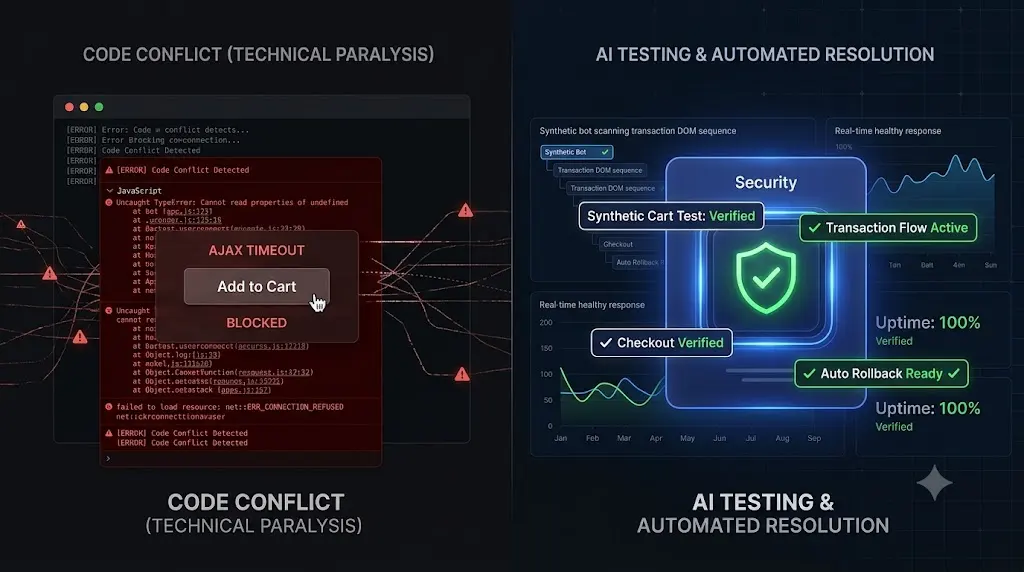
You log into your agency management dashboard and push a routine batch of plugin updates for a high-volume WooCommerce client. The server responds perfectly, and your uptime monitor shows a bright green checkmark. You close your laptop and move on to your next project unaware that a woocommerce plugin conflict may have silently broken the cart.
Three days later, the client calls you. They are livid. Traffic is normal, but they have not received a single order all weekend.
You visit the live site. The homepage looks pristine. You click “Add to Cart” and the product slides into the basket smoothly. But when you click “Proceed to Checkout,” the button simply spins. And spins. And spins. The cart is completely frozen.
The website was technically online, but the business was functionally dead.
If you manage e commerce retainers, a woocommerce plugin conflict that results in a silent checkout failure is your greatest operational liability. You cannot safely manage an agency if you do not understand why these conflicts happen and, more importantly, how to prevent them from reaching a live production environment.
This guide dissects the exact anatomy of a plugin conflict. We will break down the three specific technical reasons a WooCommerce cart freezes after an update, why your basic monitoring tools are lying to you, and how elite agencies use synthetic transaction testing as the ultimate antidote to broken updates.
Quick Answer: Why is my WooCommerce cart freezing?
A frozen WooCommerce cart is typically caused by a WordPress plugin conflict introduced during a recent update. The most common culprit is a caching or performance optimization plugin aggressively deferring the specific JavaScript required by your payment gateway (like Stripe or PayPal) or breaking the AJAX add to cart script. To fix it, you must clear all server caches or roll back the conflicting plugin. To prevent it, agencies use automated platforms like SiteOps to execute synthetic transaction tests, deploying a bot to physically verify the checkout flow after every update.
The Illusion of the Green Checkmark
Before diving into the code, we must address the operational failure that allowed a frozen cart to remain online for three days.
If you use a legacy WordPress monitoring tool, you are a victim of the HTTP 200 Fallacy. Basic monitoring bots simply ping your client’s server every five minutes. If the server is turned on, it returns an HTTP 200 OK status code.
An HTTP 200 code does not render the Document Object Model (DOM). It does not execute JavaScript. A server will happily return a “100% Healthy” status while serving a completely dead checkout page. If you push code blindly based on server pings, you are automating the deployment of risk.
Deconstructing the Conflict: 3 Ways a Cart Freezes
A modern WooCommerce store is an incredibly fragile ecosystem. It relies on a delicate integration of core PHP files, custom theme templates, complex database queries, and third party APIs.
When you click “Update All,” you introduce volatility into this ecosystem. Here is exactly what happens under the hood when one bad update freezes the cart.
1. The JavaScript Minification and Deferral Conflict
This is the number one cause of a frozen checkout.
To pass Google Core Web Vitals, your agency likely installed a performance optimization plugin (like WP Rocket, LiteSpeed Cache, or Autoptimize). When you update this plugin, it often applies new, aggressive rules for minifying or deferring JavaScript to speed up page load times.
Modern payment gateways (Stripe, PayPal, Square) require specific, external JavaScript libraries to load their secure iframes and process credit cards securely. Furthermore, the WooCommerce cart itself relies on AJAX (Asynchronous JavaScript and XML) to update totals without reloading the page.
The Conflict: If the newly updated optimization plugin improperly defers the Stripe JavaScript library, or combines the WooCommerce AJAX script in the wrong sequence, the browser cannot execute the checkout logic. The user clicks “Place Order,” but the browser does not know what to do. The button just spins endlessly, or the credit card input fields simply disappear.
2. Outdated Theme Template Overrides
To make a WooCommerce store look unique, theme developers copy the core WooCommerce PHP files (located in woocommerce/templates/) into their own custom theme folder. This is called a template override.
The Conflict: WooCommerce regularly releases major core updates that alter the underlying HTML structure and PHP hooks within those default template files to improve security and performance.
If you update the WooCommerce core plugin, but your client’s custom theme still relies on an old, overridden template from two years ago, a severe structural mismatch occurs. The CSS grid collapses. The specific HTML hooks required to trigger the checkout script are missing. The cart freezes because the frontend architecture no longer matches the backend logic.
3. Database Schema Migrations Timing Out
WooCommerce is a heavy database application. Major version updates frequently restructure how data is stored. A recent example is the shift to High Performance Order Storage (HPOS), which moved order data out of the generic wp_posts table into dedicated, custom tables.
The Conflict: When you execute a major WooCommerce update, a background script attempts to migrate massive amounts of database tables. If the client’s site is hosted on a cheap, shared server with low PHP memory limits, that script can easily time out and fail midway through the migration.
The frontend website continues to load perfectly, deceiving the agency. However, the database tables are now fundamentally misaligned. When a user attempts to process an order, the database cannot correctly store the transaction data, resulting in a silent failure and a frozen cart.
The Agency Dilemma: The Cost of Manual Verification
If legacy dashboards cannot detect a woocommerce checkout not working after update, how do responsible agencies prevent client revenue loss?
Historically, the only way to guarantee safe WordPress updates was to use a strict manual Quality Assurance (QA) protocol.
You clone the site to a staging environment. You run the updates incrementally. You enable Sandbox mode in your payment gateway. A senior developer manually adds a product to the cart, navigates to checkout, types in a test credit card number, and clicks submit. They then log into the dashboard to verify the database logged the transaction. Finally, they repeat the entire process on the live site.
The Profitability Black Hole: This manual process works, but it is financially devastating. Executing this manual testing protocol takes roughly 30 minutes of unbillable labor per client. If you manage multiple WordPress sites and have 20 e commerce clients on retainer, your team is burning 10 hours a week acting as human click testers.
The hidden cost of broken WordPress updates is not just the downtime; it is the sheer amount of payroll you waste trying to prevent it. You cannot build a highly profitable WordPress maintenance retainer if your agency model requires intense human intervention to verify basic business logic.
The Antidote: Autonomous Synthetic Transaction Testing
To scale an agency profitably, you must eliminate the manual QA bottleneck. You must stop asking if the server is awake, and start verifying if the business logic actually works.
Top tier agencies have abandoned legacy remote controls and shifted to autonomous AI platforms. This specific operational gap is exactly why we engineered SiteOps. SiteOps acts as your automated WebOps engineer, completely replacing the need for manual staging tests.
Here is exactly how the SiteOps engine acts as the ultimate antidote to the WooCommerce plugin conflict.
1. Pre Flight AI Risk Assessment
Before modifying a single file on your server, the SiteOps AI reads the developer changelogs for your pending updates. It assesses the potential threat level. If it detects a major WooCommerce database schema migration or a significant Stripe API overhaul, it flags the update as High Risk, requiring your explicit approval before proceeding.
2. Synthetic Transaction Testing (Functional Verification)
You cannot verify a checkout page with a simple server ping. You must interact with it.
During the scheduled update sequence, SiteOps spins up a headless Chromium browser in the cloud. It acts as an automated robotic shopper. It autonomously visits the live site, adds a product to the cart, and navigates to the checkout page.
It visually and functionally verifies that the required payment widget DOM elements (like the PayPal or Stripe iframe) successfully rendered on the screen. It mathematically proves that a customer can actually type their credit card number into the box, completely eliminating the risk of a silent Javascript deferral conflict.
3. AI Visual Regression Testing (Layout Verification)
To catch shattered CSS grids and template override mismatches, SiteOps takes a high resolution snapshot of the live site before the update. It applies the plugins, flushes the server cache, and takes a second snapshot.
Artificial intelligence overlays the images pixel by pixel. It easily detects a fatal layout break (such as a “Place Order” button dropping off the mobile viewport) that a standard ping monitor completely ignores.
4. Instant Autonomous Auto Rollbacks
Detecting a woocommerce plugin conflict is powerful, but true automation requires active remediation. If your tool just sends you an email at midnight telling you the checkout is frozen, you still have to wake up and fix it.
If the SiteOps AI detects a shattered visual layout, or if the synthetic bot fails to find the checkout fields, the system halts immediately.
Within seconds, it triggers an autonomous auto rollback. The MySQL database and file system are restored to their exact stable pre update state. The client never experiences a frozen cart. Their ad spend is protected. You simply wake up to a dashboard notification explaining exactly which plugin failed the business logic test, allowing you to debug it safely on a staging server.
Secure Your E Commerce Portfolio Today
Understanding how AI WordPress maintenance is changing agencies is the first step in taking control of your operational liability.
If you manage e commerce retainers using a legacy ManageWP alternative or MainWP alternative that pushes code blindly, you are actively deploying risk. You will eventually push an update that freezes a checkout, and you will eventually lose a high paying client because of it.
By upgrading to an autonomous WordPress maintenance tool equipped with synthetic transaction testing, visual regression, and proactive WordPress security monitoring, you completely eliminate the manual QA bottleneck.
You can automate WordPress maintenance for multiple sites securely today. Stop acting as a manual human QA tester. Let the AI handle the verification.
Test the synthetic transaction engine today. Claim your free sites, execute your first deterministic update, and stop worrying about frozen carts.
Frequently Asked Questions
Why is my WooCommerce cart freezing after a plugin update? A frozen checkout is typically caused by a JavaScript conflict. When performance optimization plugins update, they often apply aggressive minification rules that inadvertently break the AJAX scripts required by WooCommerce, or they defer the external scripts required by payment gateways like Stripe, rendering the checkout button unresponsive.
How do I test my WooCommerce checkout safely? Never push major updates blindly to a live production site. You must either clone the site to a staging environment to run the updates and manually execute a sandbox transaction, or use an automated AI platform like SiteOps that utilizes synthetic transaction bots to verify the checkout flow autonomously.
What is a synthetic transaction in WordPress testing? A synthetic transaction is an automated process where a headless browser acts like a real user in the cloud. It navigates to a page, adds an item to a cart, or clicks submit on a form, functionally verifying that the business logic of the site is intact without requiring unbillable human labor.
What is the HTTP 200 Fallacy in e commerce maintenance? The HTTP 200 Fallacy is the dangerous assumption that a successful server response (Code 200 OK) equals a healthy website. A site can return a 200 status while serving a completely shattered CSS layout or a frozen checkout flow, rendering basic WordPress uptime monitoring tools useless for e commerce.
How do I fix a WooCommerce theme template override conflict? Navigate to WooCommerce > Status in your WordPress dashboard and scroll down to the Templates section. It will flag any outdated custom theme files. You or your developer must update the PHP code in your child theme to match the structural changes introduced in the new WooCommerce core update.
What is visual regression testing for WooCommerce? Visual regression testing uses a headless browser to take a screenshot of your site before an update, and another screenshot immediately after. AI compares the images pixel by pixel to automatically detect visual breaks, missing checkout buttons, or shattered CSS layouts that manual testing often misses.
What happens if a plugin update breaks my site on SiteOps? If an update breaks the site layout or checkout flow, the SiteOps AI detects the visual or functional variance instantly. Before the client or their customers ever see the error, the system autonomously triggers an auto rollback, restoring the site’s database and files to their stable pre update state in seconds.
Can WordPress automatically update WooCommerce safely? Native WordPress auto updates are highly risky for e commerce sites because they execute blindly. They push the new code without verifying if it broke the frontend layout or the checkout flow. Safe automation requires a dedicated third party tool with visual and functional verification capabilities.
How do agencies manage multiple WooCommerce updates efficiently? Top tier agencies no longer use manual staging tests for every update because they are highly unprofitable. They use automated white-label WordPress maintenance platforms that combine bulk update capabilities with AI visual regression testing to eliminate manual QA hours and protect their margins.
How do you prove the value of e commerce maintenance to clients? Do not send a raw PDF listing updated plugins. Use an automated reporting tool that translates technical data into a clear executive summary. The report should highlight exactly how much downtime was avoided and how many fatal checkout breaks were prevented by your proactive automated testing systems.
Scale Your Agency Today
Join 500+ agencies automating their WordPress maintenance. Get started with 3 sites for free. No credit card required.