How to Test a WooCommerce Checkout in 60 Seconds (Without Placing a Real Order)
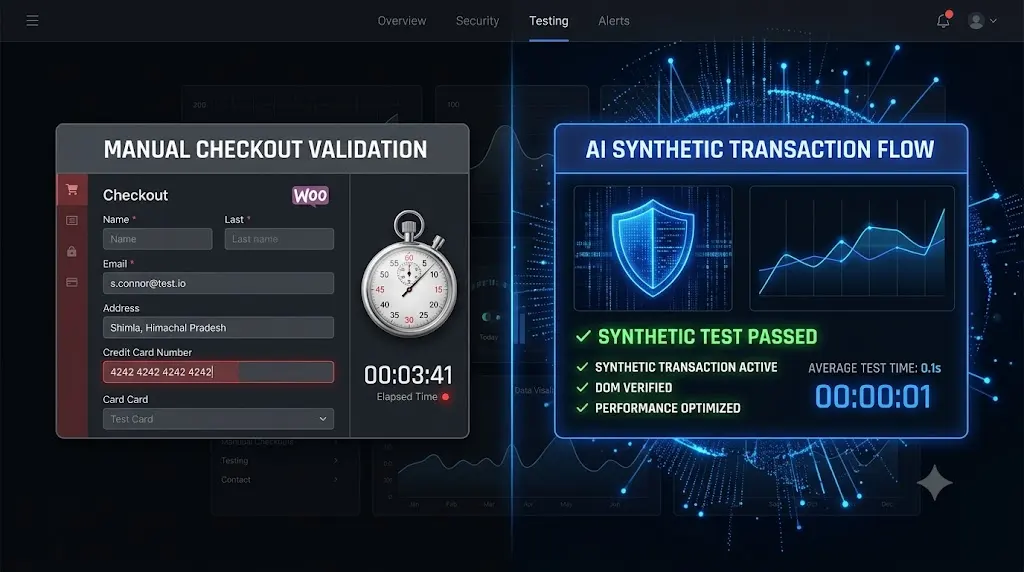
A client calls you in a panic. They suspect their e-commerce store is broken because they haven’t received a single order all morning. Before assuming the worst, test woocommerce checkout to verify whether customers can complete purchases successfully.
You navigate to their live website. The homepage loads perfectly. The product images look great. But you need to know if the actual transaction engine is functioning. You cannot exactly use your personal corporate credit card to buy a $500 product just to see if the Stripe integration is working, and then deal with the accounting nightmare of refunding yourself.
You need to test woocommerce checkout functionality immediately, safely, and without moving real money.
If you manage WooCommerce sites, verifying the checkout flow is the most important technical diagnostic you perform. A broken checkout page is functionally identical to a business closing its doors.
This guide provides the exact 60-second manual protocol for submitting a fake order on a live WooCommerce site using sandbox mode. Once you know how to do it manually, we will expose why relying on manual testing destroys agency profit margins, and how modern WebOps platforms automate this entire process using synthetic transaction bots.
Quick Answer: How do you test a WooCommerce checkout?
To test a WooCommerce checkout without using real money, you must enable “Test Mode” inside your payment gateway settings (such as Stripe or PayPal). Once enabled, navigate to the frontend of your site, add a product to the cart, and proceed to checkout. Enter a gateway-specific test credit card number (like Stripe’s 4242 4242 4242 4242) and any future expiration date. Click place order. Finally, verify the order appears in your wp-admin dashboard under WooCommerce > Orders.
The Manual 60-Second Drill: Placing a Test Order
If you only manage one website and need to verify the payment flow right now, follow this strict manual protocol. We will use Stripe as the example, as it is the industry standard for WooCommerce.
Step 1: Enable Test Mode (15 Seconds)
You must isolate your test from the live production environment to ensure real funds are not captured and live analytics are not skewed.
- Log into your WordPress admin dashboard.
- Navigate to WooCommerce > Settings > Payments.
- Click on your active payment gateway (e.g., Stripe).
- Check the box labeled Enable Test Mode.
- Save your changes.
Crucial Note: Ensure your Stripe test publishable and secret keys are entered in the settings. You can find these in your Stripe dashboard by toggling “Test Mode” in the top right corner.
Step 2: Navigate the Critical Path (15 Seconds)
Do not just jump straight to a direct checkout link. You must mimic a real user to ensure the entire flow is intact.
- Open a new Incognito or Private browsing window.
- Navigate to the shop archive page.
- Click through to a single product page.
- Click Add to Cart.
- Navigate to the Cart page, then click Proceed to Checkout.
This ensures that session cookies, cart AJAX fragments, and the checkout DOM load exactly as a customer experiences them.
Step 3: Enter the Fake Credentials (15 Seconds)
Fill out the billing details using fake customer information. When you reach the credit card input widget, you must use a specific test card number provided by your gateway.
For a successful Stripe transaction, enter:
- Card Number:
4242 4242 4242 4242 - Expiration Date: Any valid future date (e.g.,
12 / 30) - CVC: Any 3 digits (e.g.,
123) - ZIP Code: Any valid ZIP code.
Click Place Order.
If the transaction succeeds, you will be redirected to the “Order Received” (Thank You) page.
Step 4: Verify the Database (15 Seconds)
A successful frontend redirect is not enough. You must verify that the database properly logged the transaction.
- Return to your WordPress dashboard.
- Navigate to WooCommerce > Orders.
- Verify that your test order is listed at the top.
- Ensure the order status is set to Processing (not Failed or Pending Payment).
- Finally, return to your payment settings and Disable Test Mode to reactivate live transactions.
You have successfully executed a complete woocommerce test order.
The Agency Bottleneck: Why Manual Testing is Unprofitable
The 60-second manual method is perfect for a solo store owner. But if you run a WordPress maintenance agency, this workflow is an operational disaster.
Imagine you are managing 30 WooCommerce retainers. It is Friday afternoon, and you just clicked “Update All” to patch a critical vulnerability across your portfolio.
To guarantee that those plugin updates did not shatter a CSS grid or break the payment gateways, you now have to test them.
- Enabling test mode, running a fake order, verifying the database, and disabling test mode takes about 3 minutes per site if you are moving fast.
- For 30 sites, you are looking at 90 minutes of highly focused, unbillable labor.
If your agency bills at $150 an hour, you just burned $225 in potential revenue simply to verify that a routine update did not break your clients’ websites. If you do this every week, you are losing nearly $1,000 a month in unbillable QA testing.
Furthermore, manual testing is reactive. You only run a test when you push an update or when a client complains. What happens if a conflict breaks the checkout on a Tuesday night, and you don’t run a test until Friday? The client loses three days of revenue, and you lose the client.
The Autonomous Solution: Synthetic Transaction Testing
To build a highly profitable WordPress maintenance retainer, you must decouple your agency’s time from the verification process. Top-tier agencies do not act as human click-testers. They use AI platforms to automate the entire QA process.
This is exactly why we engineered SiteOps. We needed an autonomous WebOps agent that could test a checkout faster and more reliably than a human.
How Synthetic Transactions Work
When you connect an e-commerce site to SiteOps, the platform can execute synthetic transactions to proactively verify business logic.
Instead of a human opening an incognito window, SiteOps spins up a headless Chromium browser in the cloud. It acts as an automated robotic shopper.
- It visits the live site.
- It autonomously adds a product to the cart.
- It navigates to the checkout page.
- It visually verifies that the specific Document Object Model (DOM) elements required for the payment widget (like the Stripe iframe or the PayPal container) have successfully rendered on the screen.
It proves that a customer can actually type their credit card number into the box.
Visual Regression During Updates
The most dangerous time for a WooCommerce store is during a plugin update. This is when custom theme template overrides fail and CSS layouts shatter.
SiteOps utilizes pixel-perfect visual regression testing during every single update. It takes a screenshot of the checkout page before the update. It applies the code changes. It takes a second screenshot.
If the AI detects that the “Place Order” button shifted off the screen, or if the credit card input fields disappeared entirely, it instantly halts the process.
Instant Auto-Rollbacks
If SiteOps detects a broken checkout during an update, it does not wait for you to fix it. It triggers an autonomous auto-rollback. The MySQL database and file system are restored to their exact stable pre-update state in seconds.
Your client never experiences the downtime. You simply wake up to a dashboard notification explaining which plugin failed the visual QA test. This completely eliminates the need for your team to perform manual woocommerce checkout testing every Friday.
Stop Acting as a Human QA Tester
Understanding how to run a manual test is a vital diagnostic skill. But relying on manual tests to manage a portfolio of client websites is a liability that caps your agency’s growth.
If you are using legacy management tools (like a basic ManageWP alternative) that push updates blindly, you are actively deploying risk. A tool that pings a server and returns an HTTP 200 OK status code cannot tell you if the checkout page is blank.
By upgrading your operational stack to an autonomous platform equipped with synthetic transaction testing and AI visual regression, you protect your clients’ revenue and secure your agency’s profit margins permanently.
Stop spending your weekends testing e-commerce flows. Let the AI handle the verification.
Test the visual regression engine today. SiteOps is free for 3 sites, no credit card required.
Frequently Asked Questions
How do I test a WooCommerce checkout safely? Enable “Test Mode” in your WooCommerce payment gateway settings. Open an incognito window, add a product to the cart, and proceed to checkout. Use a gateway-specific test credit card number (like 4242 4242 4242 4242 for Stripe) to process a fake order, then verify the order in your WordPress dashboard.
Why did my WooCommerce checkout break after an update? Checkout breakages are usually caused by outdated custom theme template overrides that no longer match the new WooCommerce core files, or by aggressive JavaScript minification from a caching plugin that prevents the payment gateway iframe from loading.
Can I test WooCommerce without a payment gateway? Yes. You can temporarily enable the “Cash on Delivery” or “Check Payments” methods in WooCommerce settings. This allows you to submit a test order and verify the database logging without needing to configure Stripe or PayPal API keys.
What is a synthetic transaction in WooCommerce? A synthetic transaction is an automated test where a headless browser acts like a real user. It adds an item to the cart and navigates to the checkout page to visually verify that all form fields and payment widgets load correctly, ensuring the site is capable of processing orders.
Does updating WooCommerce delete my products or orders? No. A routine plugin update only replaces the core software files, not the database where your products and orders are stored. However, if a required database update script fails during the process, data corruption can occur, which is why a manual backup is required before updating.
What is visual regression testing for WooCommerce? Visual regression testing uses a headless browser to take a screenshot of your checkout page before an update, and another screenshot immediately after. AI compares the images pixel by pixel to automatically detect visual breaks, missing checkout buttons, or shattered CSS layouts.
Why did my monitoring tool miss my broken checkout? Legacy monitoring tools only check for an HTTP 200 OK status code. This simply means your server is turned on. Your WooCommerce site could have a completely broken CSS layout or a missing payment gateway, and the basic monitoring bot will still falsely report the site as perfectly healthy.
How do agencies manage WooCommerce updates efficiently? Top-tier agencies no longer use manual staging tests for every update because they are highly unprofitable. They use automated maintenance platforms that combine bulk update capabilities with AI visual regression testing to eliminate manual QA hours.
What happens if an update breaks my WooCommerce site on SiteOps? If an update breaks the checkout layout, the SiteOps AI detects the visual variance instantly. Before the client or their customers ever see the error, the system autonomously triggers an auto-rollback, restoring the database and files to their stable pre-update state in seconds.
Can WordPress automatically update WooCommerce safely? Native WordPress auto-updates are highly risky for e-commerce sites because they execute blindly. They push the new code without visually verifying if it broke the frontend layout or the checkout flow. Safe automation requires a dedicated third-party tool with visual verification.
Scale Your Agency Today
Join 500+ agencies automating their WordPress maintenance. Get started with 3 sites for free. No credit card required.