WordPress Malware Removal: The Complete Agency Guide for 2026
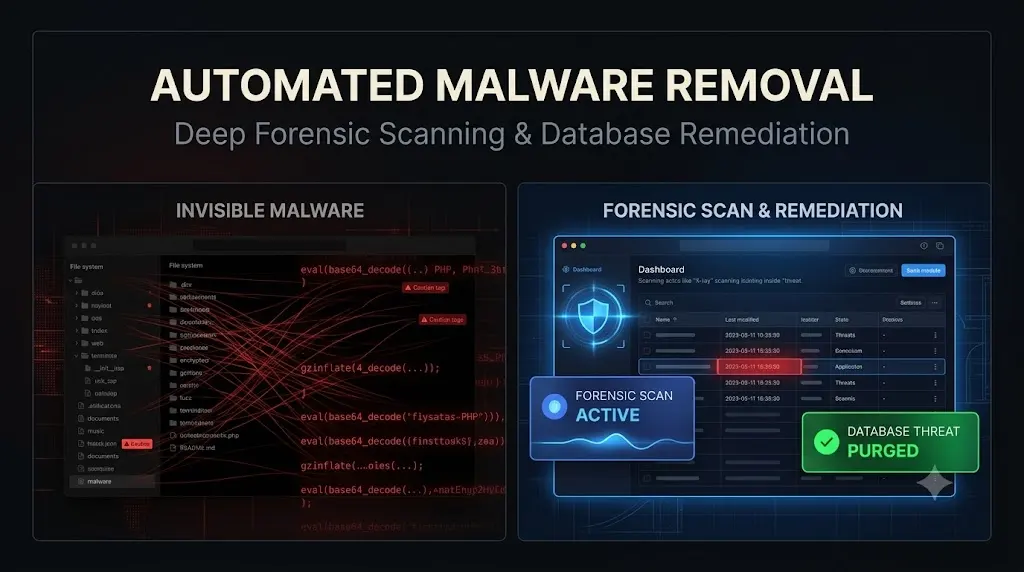
In 2026, wordpress malware removal is no longer a matter of simply clicking “Scan” on a standard plugin and deleting a suspicious file. Cybercrime syndicates have evolved. They deploy highly evasive payloads designed specifically to bypass standard WordPress security layers, hide from administrators, and establish deep persistence in your database.
You manage 50 client websites on monthly retainers. It is a Saturday morning. You receive an automated alert from Google Search Console for your highest-paying e-commerce client: “Deceptive pages detected.”
You log into their WordPress dashboard. Everything looks perfectly normal. The plugins are updated. Your basic security scanner shows a green checkmark. But when you visit the site on a mobile device, a fake Cloudflare verification prompt intercepts the screen, urging you to copy a malicious script.
The site is compromised, and the tools you trust are completely blind to it.
When you sell WordPress maintenance, a hacked client site is an operational crisis. You cannot afford to spend 15 hours manually hunting for obfuscated backdoors. You need a systematic, forensic protocol.
This pillar guide serves as the definitive manual for agencies. We will deconstruct the anatomy of modern WordPress malware, expose the invisible persistence mechanisms attackers use, and provide the exact 7-step forensic cleanup protocol you must execute to guarantee a site is sterilized.
Quick Answer: How do you remove WordPress malware?
To execute complete WordPress malware removal, you must go beyond standard plugins. First, isolate the site and take a forensic backup. Second, access the server via FTP and replace all WordPress core files with fresh copies. Third, audit the wp-content/mu-plugins directory for hidden persistence scripts. Fourth, access the raw database (via phpMyAdmin) to delete hidden “Ghost Admin” users and serialized JavaScript payloads in the wp_options table. Finally, rotate all database passwords, regenerate security salts, and implement a Web Application Firewall (WAF) to prevent reinfection.
Part 1: The Anatomy of Modern WordPress Malware
To clean an infection, you must understand how it survives. The era of attackers simply defacing a homepage with a skull and crossbones is over. Modern malware is quiet, profitable, and designed for extreme persistence.
If you are evaluating management tools, you must read our Elementor Manage Review: 4 Hidden Threats It Cannot Detect to understand why relying purely on version-checking dashboards leaves your agency exposed to these deep infections.
The Shift to Database Injections
Historically, malware lived in the file system. Hackers injected base64-encoded PHP into header.php or dropped a webshell into the uploads directory.
Today, attackers increasingly target the database. They store heavily obfuscated JavaScript payloads directly inside the wp_options or wp_posts tables as serialized strings. A tiny, seemingly innocent loader script in your theme pulls that payload and executes it. If you only scan your files, you will never find the actual malware.
A prime example of this is the Fake Cloudflare Verification on WordPress campaign (ClickFix). Attackers inject social engineering overlays directly via the database, completely bypassing standard file integrity monitors.
The Speed of Infection
Botnets do not operate on human time. They are highly optimized scripts.
When a zero-day vulnerability drops for a popular plugin, botnets scan millions of sites simultaneously. As we documented in our threat intelligence report, Hidden WordPress Malware: Sites Are Getting Hacked in 4 Minutes, attackers can transition from initial discovery to establishing a complete, invisible backdoor in under 240 seconds.
You cannot out-patch a botnet manually. Proactive defense is mandatory.
Part 2: The Invisible Persistence Mechanisms
The most frustrating aspect of wordpress malware removal is reinfection. You delete a malicious file on Tuesday, and by Wednesday morning, it is back. This occurs because you treated a symptom, not the source. You failed to find the persistence mechanism.
The Ghost Admin Backdoor
The ultimate goal of an attacker is to maintain access even if you update your vulnerable plugins. They achieve this by creating a hidden administrator account.
If a site owner sees an admin named system_backup that they didn’t create, they will delete it. To prevent this, attackers use a “Ghost Admin.” They create the user in the database, and then drop a tiny script that hooks into the WordPress API. When you load the Users screen in your dashboard, the script intercepts the query and explicitly hides the hacker’s username from the list.
Your standard security plugins rely on that same API, meaning they are lied to as well. You can read the complete technical breakdown of this mechanism in 3 Reasons Your WordPress Security Plugin Misses Ghost Admins.
Must-Use (MU) Plugins
To ensure their hiding scripts (like the Ghost Admin hook) execute before your security plugins load, attackers place them in the wp-content/mu-plugins/ directory.
Must-Use plugins execute automatically. They do not appear in the standard WordPress plugins list, and they cannot be deactivated from the dashboard. If you do not check this specific directory via FTP during a cleanup, the malware will survive.
Part 3: The 7-Step Forensic Malware Removal Protocol
If a client site is compromised, do not rely on a “1-click clean” button from a basic plugin. You must execute a manual, forensic sterilization.
Step 1: Isolation and Evidence Preservation
Never start deleting files immediately. If the attack resulted in a data breach (like exfiltrated WooCommerce customer data), you may need forensic evidence for legal or compliance reasons.
- Take a Backup: Take a complete, raw backup of the infected files and the infected MySQL database. Store it securely offline.
- Isolate the Site: Put the site in maintenance mode or block public traffic at the DNS level. You do not want visitors downloading malware while you work.
Step 2: Core File Replacement
Attackers often hide backdoors inside native WordPress core files (wp-includes or wp-admin), knowing site owners are afraid to touch them.
- Connect to the server via SFTP or SSH.
- Delete the
wp-adminandwp-includesdirectories entirely. (Do not deletewp-contentorwp-config.php). - Download a fresh, clean copy of WordPress from WordPress.org that matches the exact version you were running.
- Upload the fresh
wp-adminandwp-includesfolders. - Overwrite all root files (like
wp-login.phpandindex.php) with the fresh copies. Your core is now 100% clean.
Step 3: Auditing wp-content and MU-Plugins
This directory houses your themes, plugins, and uploads. It is the primary hiding spot for malware.
- Navigate to
wp-content/mu-plugins/. Delete any unfamiliar PHP files immediately. - Navigate to
wp-content/plugins/. Compare your installed plugins against clean copies from the repository. We strongly recommend deleting all active plugins and reinstalling fresh copies to guarantee they are clean. - Audit your active theme’s
functions.phpfile. Look for heavy obfuscation,base64_decode, or unauthorizedeval()functions. - Scan the
uploadsdirectory. Attackers often hide executable PHP files disguised with.jpgor.gifextensions. Remove any PHP files found in the uploads folder.
For a real-world example of exactly what to look for during an FTP audit, review our incident report: We Found a Hidden WordPress Backdoor at 2:20 AM.
Step 4: Raw Database Forensics
You must bypass the WordPress dashboard to find Ghost Admins and serialized payloads.
- Access the database using phpMyAdmin or a direct SQL connection.
- Open the
wp_userstable. Manually review every single row. Delete any unrecognized users. - Open the
wp_usermetatable and verify that no unauthorized users holdwp_capabilitiesmatching an administrator role. - Search the
wp_optionstable for known malicious domains or suspicious<script>tags injected into site URLs or widget text.
Step 5: Credential Rotation and Salt Regeneration
Once the site is clean, you must assume all passwords were compromised.
- Force a password reset for all legitimate administrator, editor, and author accounts.
- Enforce Two-Factor Authentication (2FA) immediately.
- Change your database password in your hosting control panel, and update the
wp-config.phpfile with the new credentials. - Generate a new set of WordPress Security Salts from the official API and replace the old salts in
wp-config.php. This forces all currently logged-in users (including attackers) to instantly log out.
Step 6: Patching the Vulnerability
Malware does not magically appear; it exploits a hole. If you clean the site but do not close the hole, the botnet will reinfect the site in minutes.
Identify which plugin or theme was the entry point (usually an outdated, vulnerable extension). Ensure everything is updated to the latest secure version.
Step 7: Delisting and WAF Implementation
If Google flagged the site, the warning will not disappear automatically just because the site is clean.
- Log into Google Search Console. Navigate to the Security Issues tab and submit a “Request Review.” Detail the exact steps you took to clean the site.
- Route the site’s DNS through a Web Application Firewall (WAF) like Cloudflare to block automated malicious traffic and virtual-patch future vulnerabilities.
Part 4: Why Manual Cleanup Destroys Agency Profitability
The 7-step protocol outlined above is bulletproof. But if you run an agency, it is a financial disaster.
A deep forensic cleanup takes a highly skilled developer between 4 to 8 hours to execute properly. If you manage 50 client sites on a $200/month retainer, absorbing an 8-hour unbillable triage session wipes out the profit margin for that client for the entire year.
Furthermore, if you are relying on manual cleanups, you are fundamentally reactive. You are only cleaning the site after the client’s brand reputation has been damaged.
To build a truly profitable web agency, you cannot rely on manual forensics. You must shift to autonomous, proactive defense.
Automating Forensics with SiteOps
We built SiteOps because we were exhausted by the manual labor required to secure complex client portfolios. SiteOps is not just a remote control; it acts as an autonomous forensic security analyst.
When you connect a client site to SiteOps, you deploy a 4-level deep scanning architecture that operates entirely outside the WordPress illusion.
- Bypassing the API: SiteOps reads the raw database options directly. If it sees four admins in the raw database but the WordPress API only reports three, the scanner instantly flags a CRITICAL Ghost Admin anomaly.
- Core Checksum Verification: It continuously compares the cryptographic hashes of every core file against the official WordPress.org records, instantly spotting injected code.
- Active CVE Tracking: It cross-references your active plugins against global CVE databases, alerting you to zero-day threats before patches are even available.
- 1-Click Remediation: When SiteOps finds a Ghost Admin or a malicious MU-plugin, you do not have to open FTP or phpMyAdmin. You click a single “Clean” button in your dashboard. The engine safely deletes the malicious user directly from the database and drops the persistent file from the server in seconds.
Stop waiting for clients to tell you their site is hacked. Stop burning billable hours on manual database forensics.
Automate your security posture and protect your retainers. Try SiteOps on up to 3 sites free today.
Frequently Asked Questions
How much does WordPress malware removal cost? If you hire a dedicated security firm to manually clean a site, emergency malware removal typically costs between $200 and $500 per site. For agencies, the internal cost of unbillable developer hours spent on manual triage can easily exceed $800 per incident.
What is a Ghost Admin in WordPress? A Ghost Admin is a malicious administrator account created by an attacker. The attacker uses a hidden PHP script (often an MU-plugin) to intercept WordPress API queries, essentially erasing their username from the standard dashboard user list so the site owner never sees them.
How do I scan my WordPress database for malware? Standard security plugins often miss database malware. You must use a tool like phpMyAdmin to manually review the wp_users table for unauthorized accounts, and search the wp_options table for obfuscated JavaScript or malicious iframe injections. Modern tools like SiteOps automate this raw database scanning.
Why did my WordPress site get hacked? Over 90% of WordPress breaches occur due to outdated, vulnerable third-party plugins. Attackers use automated botnets to scan the internet for sites running specific outdated plugin versions and instantly deploy exploits to gain unauthorized access.
Does deleting a malicious plugin remove the hacker? Usually, no. Sophisticated attackers establish deep persistence. Even if you delete a visible malicious plugin via FTP, they likely left a Ghost Admin in your database or a hidden script in your mu-plugins folder that will simply reinstall the malware on the next page load.
What are WordPress MU-plugins? Must-Use (MU) plugins are PHP files placed in the wp-content/mu-plugins/ directory. WordPress executes these files automatically before standard plugins load. They cannot be deactivated from the dashboard. Attackers heavily abuse this folder to establish deep malware persistence.
Can SiteOps detect malware that standard plugins miss? Yes. SiteOps is designed as a forensic scanner that operates outside the WordPress environment. It bypasses the standard WordPress API to read raw database tables and verifies core file cryptographic checksums against WordPress.org, catching hidden threats that manipulate standard plugins.
How do I remove a fake Cloudflare verification screen? This is known as a ClickFix attack. The malware is usually injected into the database as a serialized string or delivered via a disguised plugin. You must conduct a full file system and database audit to remove the overlay script and the persistence mechanisms hiding it.
Why did my site get reinfected after I cleaned it? Reinfection almost always means you failed to close the entry point or missed a persistence mechanism. If you clean the files but leave an outdated, vulnerable plugin active, or if you fail to find a hidden MU-plugin, the botnet will simply use the same backdoor to re-upload the malware.
How do agencies prevent WordPress malware at scale? Top agencies eliminate manual checks by using centralized WebOps platforms. Tools like SiteOps run automated, deep forensic scans daily, track CVE vulnerabilities in real-time, and utilize automated visual regression testing to ensure security patches can be applied safely and instantly.
The Bottom Line
A hacked client site is a massive operational liability. But an agency workflow that relies on manual forensic cleanups is a mathematical guarantee of shrinking profit margins.
In 2026, cybercrime is entirely automated. You cannot fight automated botnets with manual FTP searches. You must upgrade your tech stack to match the sophistication of the threats.
By implementing proactive CVE vulnerability tracking, raw database forensic scanning, and 1-click automated remediation, you secure your clients’ revenue and protect your agency’s reputation.
Stop acting as a manual security guard. SiteOps automates the entire forensic workflow.
Scale Your Agency Today
Join 500+ agencies automating their WordPress maintenance. Get started with 3 sites for free. No credit card required.