How to Onboard a New WordPress Client in 2026 (The Agency Checklist)
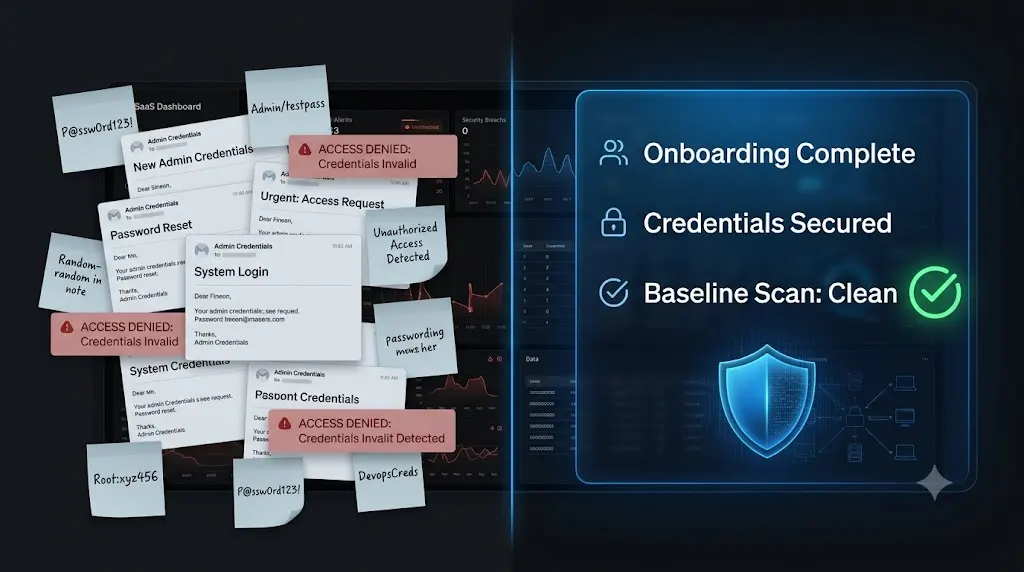
Learning how to onboard a new wordpress client safely is the most critical operational skill an agency can master. The onboarding phase is not just about getting the keys; it is about establishing boundaries, discovering hidden technical debt, and resetting the client’s expectations. If you fail to onboard correctly, your new, profitable client will instantly become a massive, unbillable headache.
You just successfully closed a $300/month maintenance retainer. The client signed the contract, paid the first invoice, and emailed you their WordPress login credentials.
You log into their dashboard to start work, and your stomach drops.
They are running an outdated version of PHP. They have 14 premium plugins active, but the licenses expired three years ago. There are five different administrator accounts for developers the client hasn’t spoken to since 2023. Worst of all, your security scanner immediately flags a deeply embedded piece of hidden WordPress malware sitting in their wp_options table.
If you touch this site now, you own the liability for that malware. You just inherited a digital disaster.
This guide provides the definitive 2026 wordpress onboarding checklist used by top-tier agencies. We will break down exactly how to audit a site before you touch the code, how to secure access properly, and how modern agencies use automated platforms to make the onboarding process completely frictionless.
Quick Answer: How do you onboard a new WordPress client?
To onboard a new WordPress client safely, you must never make changes to the live site immediately. First, execute a strict Discovery Phase: collect secure credentials, perform a deep raw database and file audit to check for pre-existing malware, and review all active plugin licenses. Next, execute the Hardening Phase: remove stale administrator accounts, enforce 2FA, and establish an automated daily backup routine. Finally, connect the site to your centralized management platform to initiate automated visual QA testing.
Phase 1: The Legal and Financial Foundation
Before you ask for a single password or review a line of code, the administrative foundation must be rock solid. You cannot fix technical problems if the business relationship is undefined.
1. The Maintenance Proposal and Contract
The biggest mistake agencies make is onboarding a client with vague expectations. You must ensure the client signed a document that explicitly states what you will not do.
If you used a strong WordPress maintenance proposal template, the client already understands that custom development and content creation are billed separately. However, that proposal must be backed by a binding agreement.
Before proceeding, verify that the client has signed your formal WordPress maintenance contract template. This contract must include a strict Limitation of Liability clause, stating that your agency is not responsible for damages caused by pre-existing hacks or third-party plugin failures that existed prior to onboarding.
2. Secure Credential Gathering
Never allow a client to email you a plaintext password. This is a massive security risk and sets a terrible precedent for your operational standards.
- The Task: Use a secure, encrypted password-sharing tool (like 1Password, Bitwarden Send, or a secure form in your client portal) to collect the necessary credentials.
- What You Need: You need an Administrator-level WordPress login, SFTP/SSH access, and access to their hosting control panel (e.g., cPanel, WP Engine portal, Cloudways). If they cannot provide hosting access, you cannot effectively support them during a catastrophic server crash.
Phase 2: The Pre-Flight Technical Audit (Discovery)
This is the most critical phase of the agency client onboarding process. You are taking over a used car; you must look under the hood before you promise it runs perfectly.
If you discover massive issues during this phase, you must pause the onboarding and issue a separate, one-time “Remediation Invoice” to clean the site before moving them onto your recurring maintenance plan.
3. The Deep Forensic Security Scan
Do not rely on the client telling you the site is clean. As we noted in our recent incident report regarding a hidden WordPress backdoor, a site can look perfectly normal on the frontend while harboring a massive database injection.
- The Task: Run a deep forensic scan that bypasses the WordPress API. You must check the raw database for serialized payloads (like the fake Cloudflare malware), verify core file cryptographic checksums against WordPress.org, and audit the
wp-content/mu-plugins/directory for persistence mechanisms.
If you find malware, the onboarding halts immediately until a forensic cleanup is performed.
4. Audit Active Plugins and Premium Licenses
The most common reason for a hidden cost of broken WordPress updates during onboarding is expired premium plugins.
- The Task: Review the active plugin list. Identify any premium plugins (e.g., WP Rocket, Elementor Pro, Advanced Custom Fields Pro).
- The Verification: You must verify if those licenses are currently active. If a critical WooCommerce extension expired two years ago, you cannot update it. You must inform the client immediately that they need to purchase a license, or transition the license to your agency’s developer key.
5. Review the Hosting Environment
You cannot guarantee 99.9% uptime if the client is hosted on a $3/month shared server running outdated software.
- The Task: Check the server’s PHP version. If they are running anything older than PHP 8.1, you must schedule an environment upgrade immediately, as older versions are no longer receiving security patches.
- The Task: Check the server’s available disk space and PHP Memory Limit. If the memory limit is set to 128MB on a heavy WooCommerce site, the site will crash frequently.
Phase 3: Hardening and Securing the Perimeter
Once the discovery audit is complete and any pre-existing issues are resolved, you must secure the environment. You are now responsible for taking over a wordpress site, so you must lock the doors.
6. Purge Stale Administrator Accounts
The easiest way for a botnet to compromise a site is by brute-forcing an old, forgotten developer account with a weak password.
- The Task: Review the
wp_userstable. Demote or delete any undocumented administrator accounts. Ensure the remaining admins are strictly the client owner and your agency. - The Ghost Admin Check: Be aware that sophisticated attackers use hooks to hide their accounts from the dashboard. Ensure you check the raw database to verify no Ghost Admin accounts exist.
7. Enforce Two-Factor Authentication (2FA)
Passwords are no longer sufficient for administrator accounts.
- The Task: Install a security plugin or utilize your central management platform to enforce mandatory 2FA for all Administrator and Editor roles. This single action eliminates 99% of brute-force login attempts.
8. Establish the Initial Backup Baseline
Before you connect the site to your management tools or begin updating plugins, you must have a clean restore point.
- The Task: Trigger a complete, manual backup of the MySQL database and the entire file system. Push this backup to a secure, off-site cloud storage vault (like Amazon S3). Do not store the backup on the client’s local server.
Phase 4: Connecting the Command Center
Managing 50 clients individually by logging into 50 different dashboards is impossible. The final step of the wordpress client handoff is connecting the site to your agency’s central nervous system.
9. Connect the Site to Your Management Platform
If you want to manage multiple WordPress sites profitably, you must deploy a central worker plugin to the client’s site.
- The Task: Install your management platform’s connector plugin (e.g., the SiteOps worker). This establishes the secure API connection between the client’s site and your dashboard.
- The Verification: Once connected, configure your daily automated backup schedule, set up the 5-minute uptime monitoring ping, and run the initial bulk plugin updates using the platform’s automated features.
Why Manual Onboarding Kills Profitability
The 9-step checklist outlined above is bulletproof. But if you execute it manually, it is incredibly expensive.
If your senior developer spends three hours manually reviewing wp_options tables in phpMyAdmin, cross-referencing plugin licenses, and setting up backup cron jobs, you have just wiped out the first month of profit on a $300/month retainer.
To successfully productize WordPress care plans, you must automate the onboarding discovery and hardening phases.
Top-tier agencies rely on modern WebOps platforms to handle the heavy lifting, essentially turning a three-hour manual audit into a five-minute automated scan.
Automating the Onboarding Checklist with SiteOps
When evaluating how AI is changing WordPress maintenance, the onboarding phase is where agencies see the most immediate return on investment.
We engineered SiteOps specifically to act as an autonomous operational layer for your agency, drastically reducing the friction of client handoffs.
When you install the SiteOps worker plugin on a new client’s site, the platform instantly executes a massive portion of the onboarding checklist for you.
- Instant Forensic Audit: SiteOps bypasses the WordPress API to read the raw database directly. It automatically flags Ghost Admins, verifies core file cryptographic checksums, and alerts you to active CVE vulnerabilities before you touch the site.
- Automated Hardening: You can deploy standard security policies (like enforcing 2FA and disabling XML-RPC) across the new site directly from the dashboard.
- Zero-Risk Initial Updates: When it is time to run that terrifying first batch of updates on a messy site, SiteOps uses AI visual regression testing. It takes before-and-after screenshots of the frontend. If an update shatters the layout, it executes an instant auto-rollback, ensuring the client never sees a broken page on day one.
You cannot build a profitable recurring revenue business if you are terrified of what you will find when you onboard a new client. Stop guessing about site health.
Automate your onboarding process with SiteOps. Try the deep forensic scanning engine today, free for 3 sites.
Frequently Asked Questions
How do I onboard a new WordPress client? To onboard a client safely, start by establishing a strict contract to prevent scope creep. Then, secure their credentials via an encrypted tool, perform a deep forensic scan to check for pre-existing malware, remove stale admin accounts, take a baseline backup, and finally, connect the site to your centralized management dashboard.
Why do I need a pre-flight audit before updating plugins? A new client’s site may have expired premium plugin licenses, custom PHP conflicts, or pre-existing malware. If you click “Update All” without auditing the site first, those conflicts can trigger a fatal error, and the client will blame your agency for breaking the site.
What is the best way to get passwords from a new client? Never ask a client to email you a password. Use a secure, encrypted password-sharing service like 1Password, Bitwarden Send, or a dedicated, secure onboarding form integrated into your agency’s client portal.
How do I check a new client’s site for hidden malware? Do not rely on standard security plugins that run inside the WordPress dashboard, as sophisticated malware can hide from them. You must use a tool that reads raw database tables (like wp_options and wp_users) and verifies core file checksums against WordPress.org, or utilize a forensic platform like SiteOps.
Should I charge a setup fee for WordPress maintenance? Many agencies charge a one-time onboarding or setup fee (often equivalent to one month of the retainer) to cover the unbillable hours required to perform the initial security audit, fix minor pre-existing issues, and connect the site to their management tools.
What happens if I find malware during onboarding? If you discover malware during the initial audit, immediately halt the onboarding process. Inform the client of the breach and issue a separate, one-time invoice for a forensic malware remediation. Do not absorb the cost of cleaning a pre-existing hack into your monthly retainer.
How do I safely update plugins on a messy client site? If the site is highly complex or you suspect conflicts, never push updates blindly. Use an automated maintenance platform like SiteOps that utilizes AI visual regression testing. The system takes screenshots before and after the update, automatically rolling the site back if the layout breaks.
What is a Ghost Admin in WordPress? A Ghost Admin is a malicious administrator account created by a hacker. The attacker uses a hidden PHP script (often an MU-plugin) to intercept WordPress API queries, essentially erasing their username from the standard dashboard user list so the site owner never sees them.
How do I automate the WordPress client handoff? Agencies automate the handoff by combining standardized legal templates (proposals and contracts) with an automated WebOps platform. Once the client signs, the agency installs a single worker plugin that autonomously handles backups, security scanning, and layout verification.
What should be included in a WordPress maintenance contract? A strong contract must explicitly define the scope of work (e.g., weekly updates, backups, monitoring) and clearly list what is excluded (custom development, content creation). It must also include a Limitation of Liability clause protecting the agency from third-party hack damages.
Scale Your Agency Today
Join 500+ agencies automating their WordPress maintenance. Get started with 3 sites for free. No credit card required.